Upgrading Ubuntu 18.04 LTS to 20.04 LTS
Note
This post may be partially machine- or AI-translated. If there is any discrepancy, the Korean version takes precedence.
This is how to upgrade from Ubuntu 18.04 Bionic Beaver to 20.04 Focal Fossa.
For upgrading from 16.04 to 18.04, see this post.
Problems such as boot failure can occur during the upgrade, so proceed only after understanding the risk.
Update packages
Update packages to the latest versions.
$ sudo apt update && sudo apt upgrade && sudo apt dist-upgradeReboot after the update completes.
$ sudo reboot nowRemove packages that are no longer needed.
$ sudo apt autoremove && sudo apt cleanInstall update-manager
Install update-manager-core if it is not already installed.
$ sudo apt install update-manager-coreChange the update-manager configuration to upgrade to an LTS release.
$ sudo nano /etc/update-manager/release-upgradesChange it to Prompt=lts as shown below.
 Default behavior for the release upgrader.

[DEFAULT]
# Default prompting behavior, valid options:
#
#  never  - Never check for, or allow upgrading to, a new release.
#  normal - Check to see if a new release is available.  If more than one new
#           release is found, the release upgrader will attempt to upgrade to
#           the supported release that immediately succeeds the
#           currently-running release.
#  lts    - Check to see if a new LTS release is available.  The upgrader
#           will attempt to upgrade to the first LTS release available after
#           the currently-running one.  Note that if this option is used and
#           the currently-running release is not itself an LTS release the
#           upgrader will assume prompt was meant to be normal.
Prompt=lts
Press Ctrl+X - Y - Enter to save.
Upgrade the Ubuntu release
Start the upgrade.
Because direct upgrades to 20.04 were not yet available, use the -d option. (2020-07-29)
$ sudo do-release-upgrade -d$ sudo do-release-upgrade -d
Checking for a new Ubuntu release
Get:1 Upgrade tool signature [1554 B]
Get:2 Upgrade tool [1333 kB]
Fetched 1334 kB in 6s (203 kB/s)
authenticate 'focal.tar.gz' against 'focal.tar.gz.gpg'
extracting 'focal.tar.gz'
Reading cache
Checking package manager
Continue running under SSH?
This session appears to be running under ssh. It is not recommended
to perform a upgrade over ssh currently because in case of failure it
is harder to recover.
If you continue, an additional ssh daemon will be started at port
'1022'.
Do you want to continue?
Continue [yN]A message appears saying that upgrading over SSH is not recommended.
This is because it is harder to recover if a problem occurs after the upgrade.
It also says an additional SSH daemon will run on port 1022 if you continue.
Enter y to confirm.
Continue [yN] y

Starting additional sshd

To make recovery in case of failure easier, an additional sshd will
be started on port '1022'. If anything goes wrong with the running
ssh you can still connect to the additional one.
If you run a firewall, you may need to temporarily open this port. As
this is potentially dangerous it's not done automatically. You can
open the port with e.g.:
'iptables -I INPUT -p tcp --dport 1022 -j ACCEPT'

To continue please press [ENTER]
This is guidance for updating firewall settings.
It explains that if a problem occurs after the upgrade, you can connect over SSH on port 1022.
Press Enter to confirm.
To continue please press [ENTER]

Reading package lists... Done
Building dependency tree
Reading state information... Done
Hit http://ap-northeast-2.ec2.archive.ubuntu.com/ubuntu bionic InRelease
Get:1 http://ap-northeast-2.ec2.archive.ubuntu.com/ubuntu bionic-updates InRelease [88.7 kB]
Get:2 http://ap-northeast-2.ec2.archive.ubuntu.com/ubuntu bionic-backports InRelease [74.6 kB]
Get:3 http://security.ubuntu.com/ubuntu bionic-security InRelease [88.7 kB]
Hit http://ppa.launchpad.net/wireguard/wireguard/ubuntu bionic InRelease
Fetched 252 kB in 0s (0 B/s)
Reading package lists... Done
Building dependency tree
Reading state information... Done

Updating repository information

Third party sources disabled

Some third party entries in your sources.list were disabled. You can
re-enable them after the upgrade with the 'software-properties' tool
or your package manager.

To continue please press [ENTER]
This says third-party repositories added to sources.list will be disabled.
Press Enter to confirm.
.......

Do you want to start the upgrade?

18 installed packages are no longer supported by Canonical. You can
still get support from the community.

14 packages are going to be removed. 172 new packages are going to be
installed. 651 packages are going to be upgraded.

You have to download a total of 407 M. This download will take about
51 minutes with a 1Mbit DSL connection and about 15 hours with a 56k
modem.

Fetching and installing the upgrade can take several hours. Once the
download has finished, the process cannot be canceled.

 Continue [yN]  Details [d]
Check the upgrade details, then enter y to continue.
 Continue [yN]  Details [d]y

.......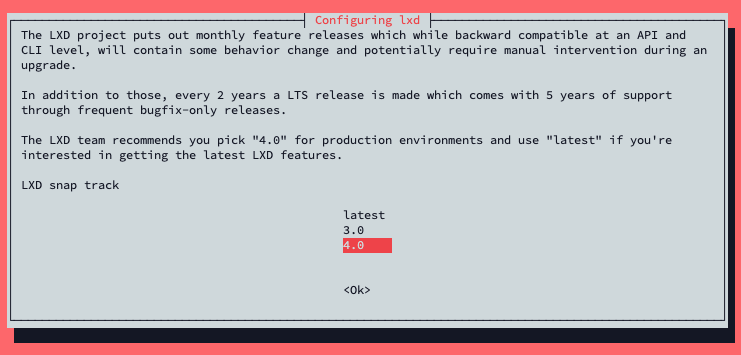
This is the configuration page for the LXD system container manager.
I selected the LTS release, 4.0. (Enter)
.......

Configuration file '/etc/sysctl.conf'
 ==> Modified (by you or by a script) since installation.
 ==> Package distributor has shipped an updated version.
   What would you like to do about it ?  Your options are:
    Y or I  : install the package maintainer's version
    N or O  : keep your currently-installed version
      D     : show the differences between the versions
      Z     : start a shell to examine the situation
 The default action is to keep your current version.
*** sysctl.conf (Y/I/N/O/D/Z) [default=N] ?
This appears because /etc/sysctl.conf has been updated.
Enter D to check the changes, then enter either Y or N.
*** sysctl.conf (Y/I/N/O/D/Z) [default=N] ? d
--- /etc/sysctl.conf    2020-06-14 22:52:44.617580235 +0900
+++ /etc/sysctl.conf.dpkg-new   2020-02-14 07:44:31.000000000 +0900
@@ -25,7 +25,7 @@
 #net.ipv4.tcp_syncookies=1

 # Uncomment the next line to enable packet forwarding for IPv4
-net.ipv4.ip_forward=1
+#net.ipv4.ip_forward=1

 # Uncomment the next line to enable packet forwarding for IPv6
 #  Enabling this option disables Stateless Address Autoconfiguration
@@ -61,17 +61,8 @@

 ###################################################################
 # Magic system request Key
-# 0=disable, 1=enable all
-# Debian kernels have this set to 0 (disable the key)
-# See https://www.kernel.org/doc/Documentation/sysrq.txt
+# 0=disable, 1=enable all, >1 bitmask of sysrq functions
+# See https://www.kernel.org/doc/html/latest/admin-guide/sysrq.html
 # for what other values do
-#kernel.sysrq=1
+#kernel.sysrq=438

-###################################################################
-# Protected links
-#
-# Protects against creating or following links under certain conditions
-# Debian kernels have both set to 1 (restricted)
-# See https://www.kernel.org/doc/Documentation/sysctl/fs.txt
-#fs.protected_hardlinks=0
-#fs.protected_symlinks=0

Configuration file '/etc/sysctl.conf'
 ==> Modified (by you or by a script) since installation.
 ==> Package distributor has shipped an updated version.
   What would you like to do about it ?  Your options are:
    Y or I  : install the package maintainer's version
    N or O  : keep your currently-installed version
      D     : show the differences between the versions
      Z     : start a shell to examine the situation
 The default action is to keep your current version.
*** sysctl.conf (Y/I/N/O/D/Z) [default=N] ? n
I entered n and kept the existing file.
(IPv4 packet forwarding was configured.)
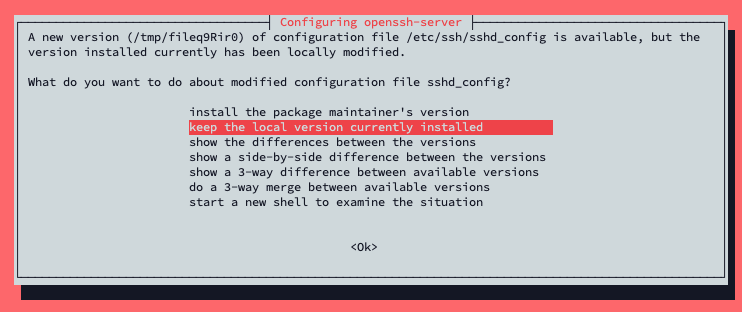
I kept the existing openssh-server configuration file.
.......

Reading package lists... Done
Building dependency tree
Reading state information... Done

Searching for obsolete software
Reading state information... Done

Remove obsolete packages?

86 packages are going to be removed.

 Continue [yN]  Details [d]
This asks whether to remove unused packages.
Enter y to remove them.
System upgrade is complete.

Restart required

To finish the upgrade, a restart is required.
If you select 'y' the system will be restarted.

Continue [yN]
This is the upgrade completion message.
Enter y to reboot.
$ lsb_release -a
No LSB modules are available.
Distributor ID: Ubuntu
Description:    Ubuntu 20.04.1 LTS
Release:        20.04
Codename:       focal
You can confirm that the upgrade is complete.
Re-enable third-party repositories if needed
Re-enable the third-party repositories that were disabled during the upgrade.
Check the contents of *.list files inside /etc/apt/sources.list.d/, then uncomment lines like this:
# ....... focal main # disabled on upgrade to focalFetch the package list again.
$ sudo apt update