Changing the Windows 10 Lock screen slideshow layout
Note
This post may be partially machine- or AI-translated. If there is any discrepancy, the Korean version takes precedence.
When the Windows 10 Lock screen background is set to a slideshow, images are displayed in a collage layout.
I will change it so the slideshow displays one image at a time.
This guide uses Windows 10 Education 2004 (19041.388).
Edit the registry
Open Registry Editor (Win + R -> regedit) and go to the following path.
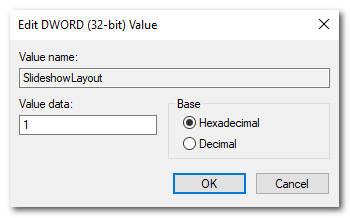
HKEY_CURRENT_USER\SOFTWARE\Microsoft\Windows\CurrentVersion\Lock ScreenCreate a DWORD (32-bit) Value named SlideshowLayout.
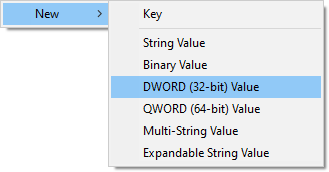
Valid values are 1 through 9, with the following meanings:
- One image in a horizontal layout
- Two images in a horizontal tile layout
- Three images in a horizontal tile layout
- Four images in a horizontal tile layout
- Five images in a horizontal tile layout
- Six images in a horizontal tile layout
- One image in a vertical layout
- Two images in a vertical tile layout
- Three images in a vertical tile layout
The slideshow starts from the last digit. If you set it to 311, images are displayed in the order 1 -> 1 -> 3.
I use the DWORD value 1.
References
https://answers.microsoft.com/en-us/windows/forum/windows_10-start/lock-screen-slideshow-showing-tiled-photos/4d56e24c-a353-4c93-ac61-fc2159033a6e [Archived]
https://superuser.com/questions/1243643/is-there-a-way-to-get-a-windows-10-lock-screen-slide-show-without-tiling-or-zoom [Archived]