Raspberry Pi boot failure
Note
This post may be partially machine- or AI-translated. If there is any discrepancy, the Korean version takes precedence.
Note
This post might be outdated and some links might not be available.
When using an SDXC memory card of 64 GB or larger with a Raspberry Pi, only a black screen may appear and the device may fail to boot.
Usually, you put the NOOBS installer on the memory card and boot from it. In that case, the memory card must be formatted as FAT32.
When formatted with SD Memory Card Formatter, cards are formatted as shown below.
| Type | Capacity | Default format |
|---|---|---|
| SD | 128MB-2GB | FAT16 |
| SDHC | 4GB-32GB | FAT32 |
| SDXC | 64GB-2TB | exFAT |
If the card was formatted as exFAT, use the following procedure to change it to FAT32.
Tools to use
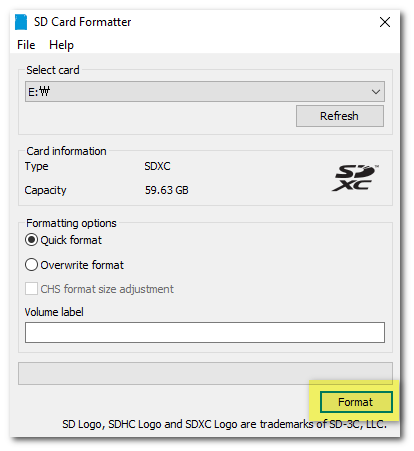
Format with SD Card Formatter
Initialize the SD card. It will be formatted as exFAT.
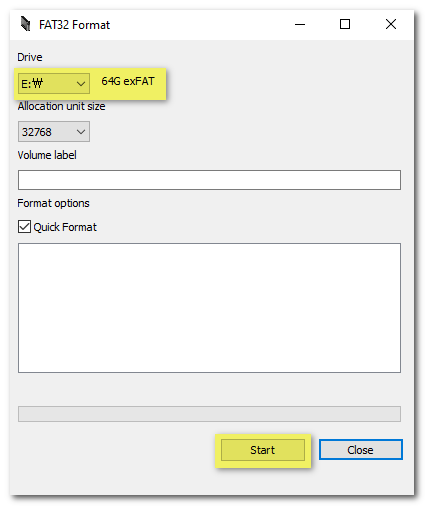
Format with guiformat.exe
Reformat it from exFAT to FAT32.
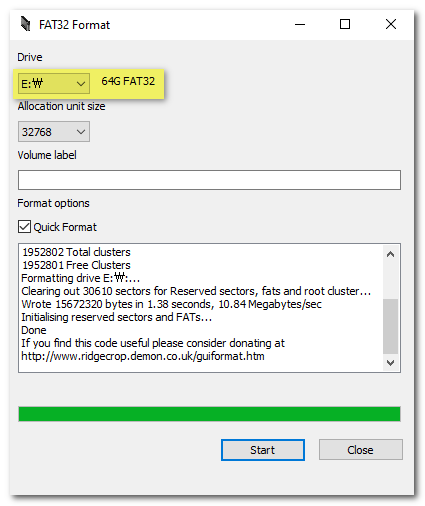
You can confirm that formatting is complete.
Copy the boot image back to the SD card, then boot the Raspberry Pi.
If guiformat.exe shows a Failed to open device error
Another process may be using the disk.
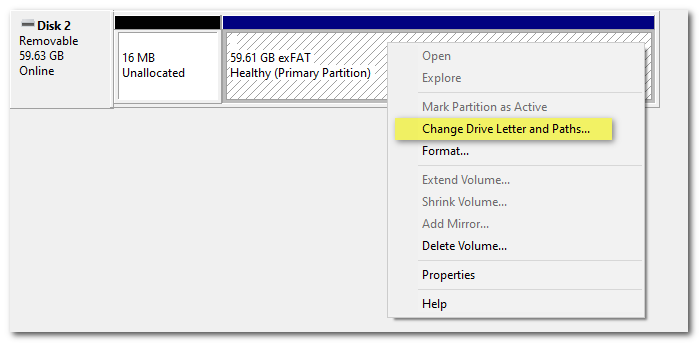
Go to Control Panel -> Administrative Tools -> Computer Management -> Storage -> Disk Management, then right-click the SD card’s exFAT partition.
In the context menu, choose Change Drive Letter and Paths....
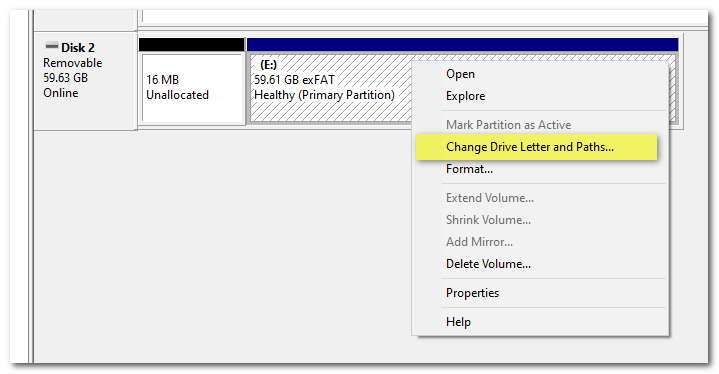
Remove the currently assigned drive letter, then click OK.
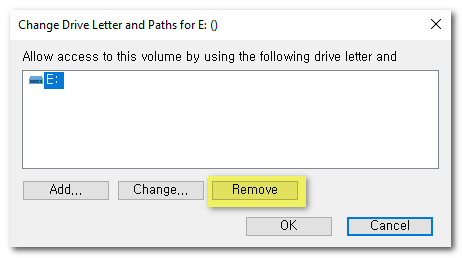
You can confirm that the drive letter has been removed.

Right-click the partition again and choose Change Drive Letter and Paths....
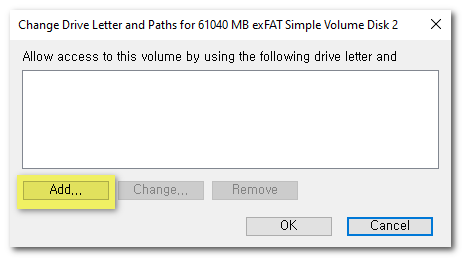
Click Add....
Select the drive letter you want, then click OK.
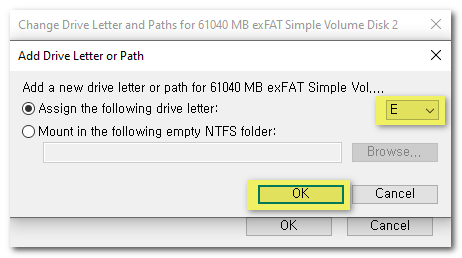
You can confirm that the selected drive letter has been assigned.

Try formatting again with guiformat.exe.