RemoteFX USB redirection in Hyper-V
Note
This post may be partially machine- or AI-translated. If there is any discrepancy, the Korean version takes precedence.
Note
This post might be outdated and some links might not be available.
This is how to configure a Hyper-V virtual machine so it can use USB devices from the host.
This guide uses Windows 10 Education 1903 (18362.207).
Hyper-V server settings
Open Hyper-V Manager and connect to the server.
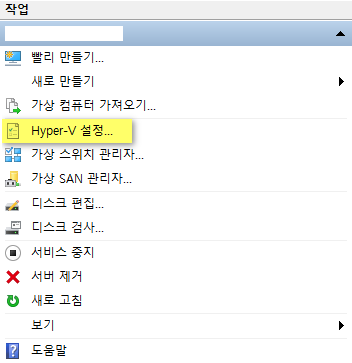
Open the server’s Hyper-V settings.
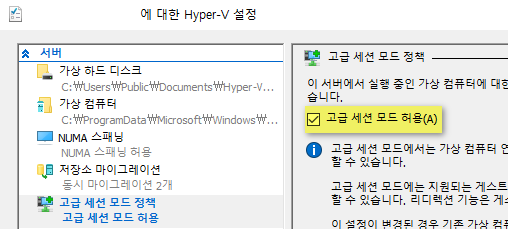
Under Enhanced Session Mode Policy for the server, check Allow enhanced session mode.
Under Enhanced Session Mode for the user, check Use enhanced session mode.
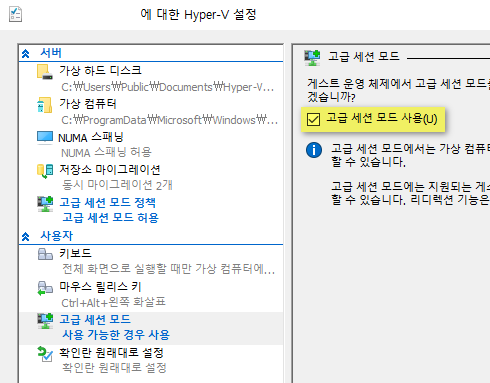
Click Apply to save the setting.
Hyper-V virtual machine settings
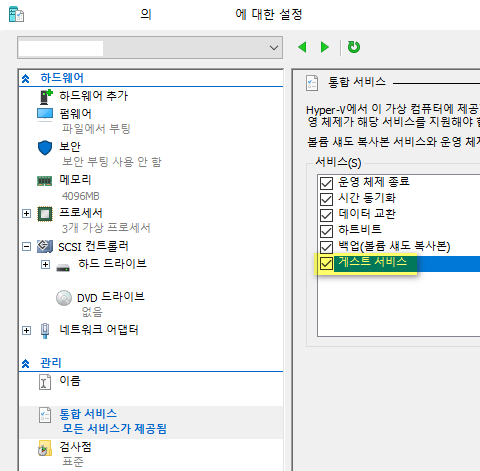
Edit the virtual machine settings.
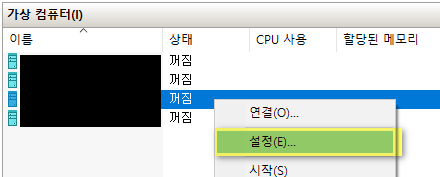
Under Management, enable Guest services in the Integration Services list.
Click Apply to save the setting.
Host (RDP client) settings
Press Win+R, enter gpedit.msc, and open Local Group Policy Editor.
Edit the following group policy:
Local Computer Policy/Computer Configuration/Administrative Templates/Windows Components/Remote Desktop Services/Remote Desktop Connection Client/RemoteFX USB Device Redirection/Allow RDP redirection of other supported RemoteFX USB devices from this computer
Change it from Not configured to Enabled, administrators and users.
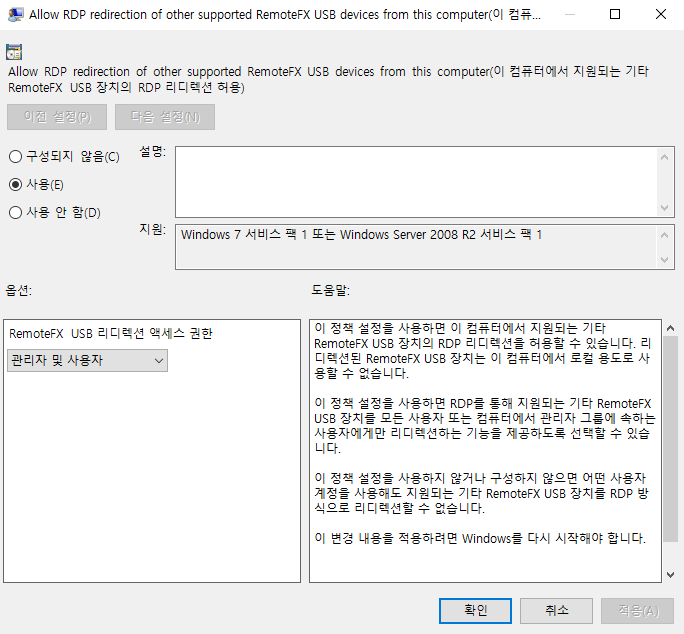
Click Apply to save.
Settings inside the virtual machine running on Hyper-V
Edit the following group policy:
Local Computer Policy/Computer Configuration/Administrative Templates/Windows Components/Remote Desktop Services/Remote Desktop Session Host/Device and Resource Redirection/Do not allow supported Plug and Play device redirection
Change it to Disabled.
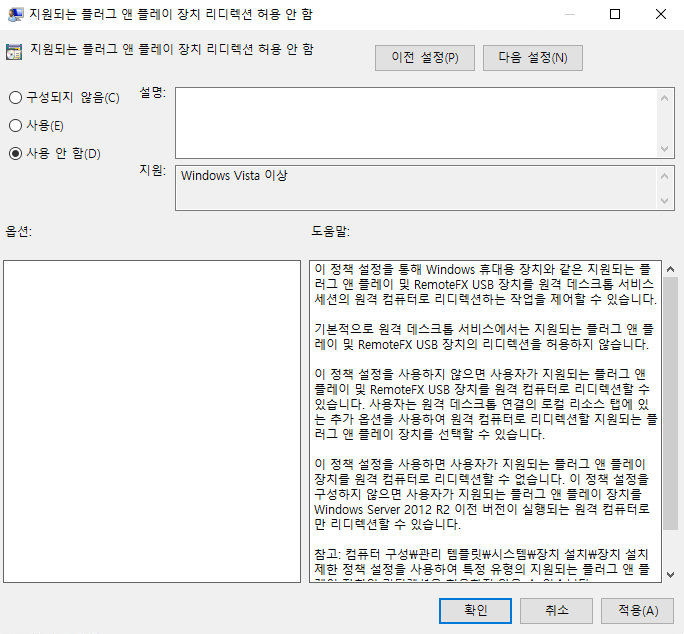
Click Apply to save.
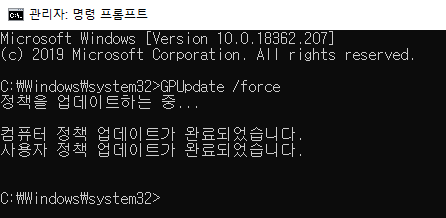
Open an administrator CMD on both the host and the virtual machine, run GPUpdate /force, then reboot.
Connect to the virtual machine with RemoteFX USB redirection
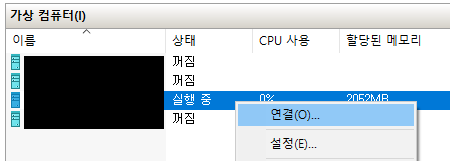
Connect to the running virtual machine.
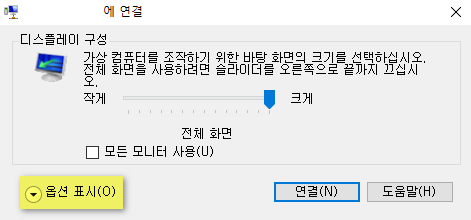
In the connection dialog, show more options.
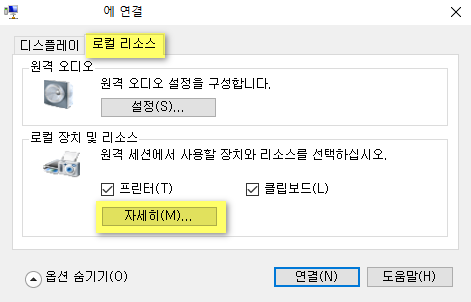
Under Local Resources -> Local devices and resources, click More.
Select the USB devices you want to use.
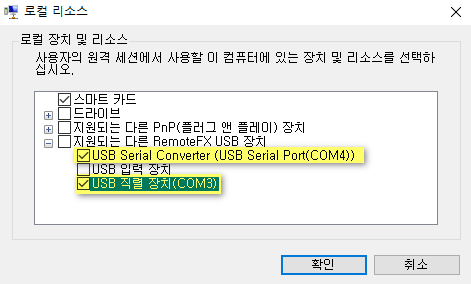
Click OK to save, then connect to the virtual machine.
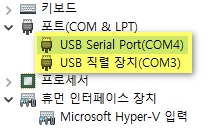
You can confirm the selected and connected devices in Device Manager inside the virtual machine.
Use local resources on Hyper-V virtual machine with VMConnect